Table of Contents
Scripting Tools
 The plugin simplifies the creation of new HippoEDIT scripting plug-ins and tool scripts by providing a set of useful functions and wizards.
Associated stuff is located under new main menu item Scripting or with a help of registered commands (search for “scripting”).
Functions

- Insert Image String… - insert encoded image into a document as a string. The result can be used as input for RegisterImage command.
- Insert new UUID… - generates and inserts unique id into a document. Can be used for generating GUIDs for plugins.
- Icon Finder… - opens IconFinder website, parametrized by selected text. IconFinder is a library of free/commerce icons you can use as command icons in HippoEDIT. Just search something based on keyword matching your command, get a 16×16 icon and save it locally. Then embed it into the script using Insert Image String command or access it as an external file in RegisterImage.
Wizards
New Tool Script
Wizard creates simple tool script that outputs HippoEDIT version and shows “Hello World” in a popup box. The resulting script can be executed or directly by Tools→Execute <script_name>.hejs or can be added as a tool (taking a path to the script as a command) and then executed with a shortcut or from a toolbar.
New Service Script
 | On General page you need to define plugin name (this name will be shown in plugin list and also used for main file name generation), description of the plugin (seen in plugin list description area), plugin initial version (can be N - N.N - N.N.N - N.N.N.N), author name and email for contact, and plugin homepage (can be wiki page on HippoEDIT wiki) |
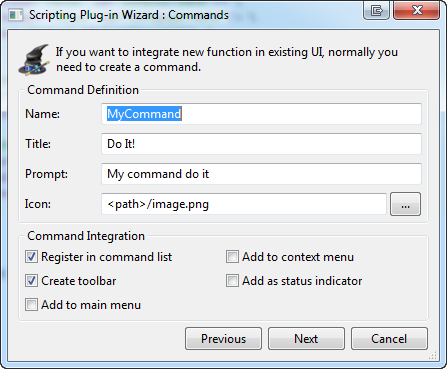 | On Commands page you can create example command. Parameters are named (shown in command list), title (shown in menu or toolbar tooltip), prompt (shown in the status bar when the command hovers), icon - path to icon file for embedding (used in toolbar and menus). In addition, you can define if command shall be registered in global list (Register in commands list), added on a new toolbar (Create Toolbar), to new main menu submenu (Add to the main menu), or to a context menu. You can also re-use the command as an indicator in the status bar. |
 | On UI Events page you can select additional HippoEDIT for which you want to have default handlers generated. Names are self-understandable :) |
 | As result of the wizard, you will get two files generated: <plugin-name>.hejs is main plugin file, second package-info.xml is supplementary file for packaging of the plugin unbundle, defining file list and installation instructions. After saving of the files, go to <plugin-name>.hejs and execute it with Tools→Execute <plugin-name>.hejs. You are done. The plugin is executed and registered for auto-run. New toolbar button added. Pressing on button calls generated example command handler. |
 | After plugin executing/registration in addition to button you can see command in standard command list in Keyboard settings (only if you have selected appropriate flag on second Command page). You can now assign shortcuts to command if you want. |
 | After successful registration example plugin appears in plugin list (Tools→Plugins). To disable the plugin - remove checkbox in front of plugin name. |
Install
You can install plugin directly from HippoEDIT Plugins options page (Tools→Options→Plugins), if you have Online Repository activated or by download plugin bundle directly from this page and open it with HippoEDIT.
More
For details about integration, you can ask on forum.
#plugin